
Google Search Console (GSC) is an indispensable tool for every website owner, marketer, and SEO expert. Whether you are a beginner looking to optimize your website or a seasoned pro aiming to refine your strategy. GSC offers valuable insight into improving your site’s performance on Google search. This guide will walk you through everything you need to know about using Google Search Console effectively. In this blog, we will try to guide you on how to use Google Search Console and solve each problem. So let’s start.
What is Google Search Console?
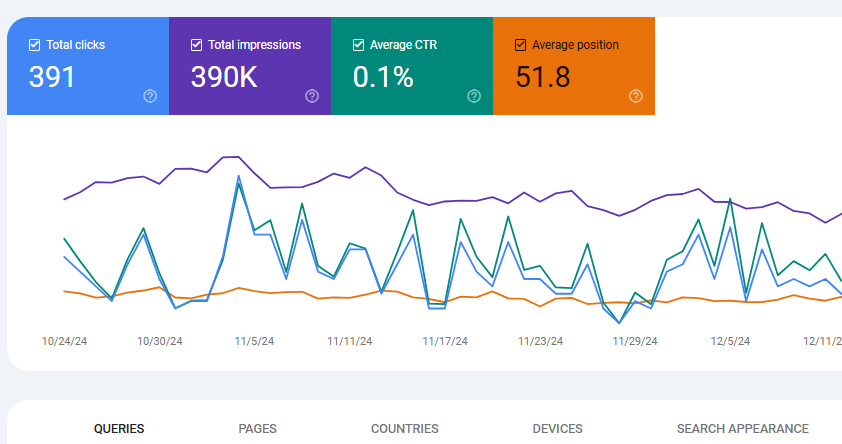
Before we start, let’s know about it. Google Search Console is a free tool provided by Google that helps you monitor, maintain, and track your website’s presence in Google search results.
It offers insight into your website’s search performance, indexing, status, and issues that might be affecting its visibility. With GSC you can
- Optimize your website for better rankings.
- Monitor website traffic and keyword performance.
- Submit sitemaps and URLs for crawling.
- Get alerted about potential security issues.
- Identify and fix indexing problems.
Setting Up Google Search Console
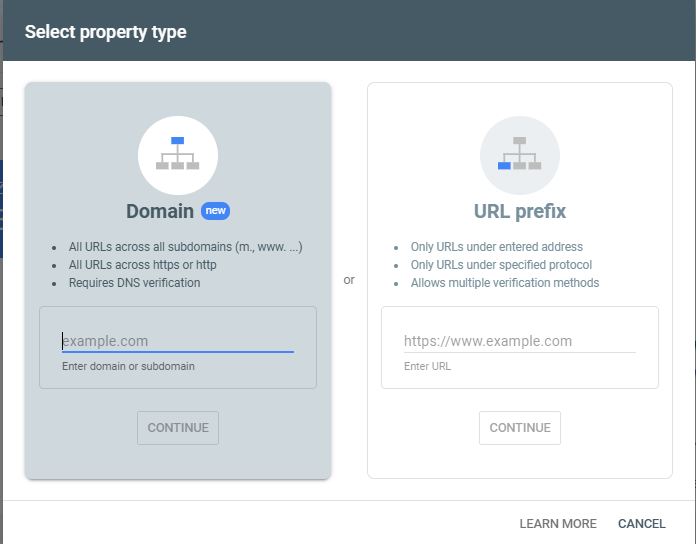
If you are looking to set up your search console for your website. Then here is the guide.
- Create a Google Account: Before you move, you have to create a Google account to access GSC. If you don’t already have one, that creates an account. Click on Google.
- Add your website to GSC.
- Log in to GSC and click on “Add Property.”
- Enter your website’s URL and select the verification method (e.g., HTML file upload, DNS record, or Google Analytics).
- Verify Ownership: Follow the following steps to verify that you own the website; this process ensures the data is only accessible to authorized users.
Key Features of Google Search Console
- Performance report
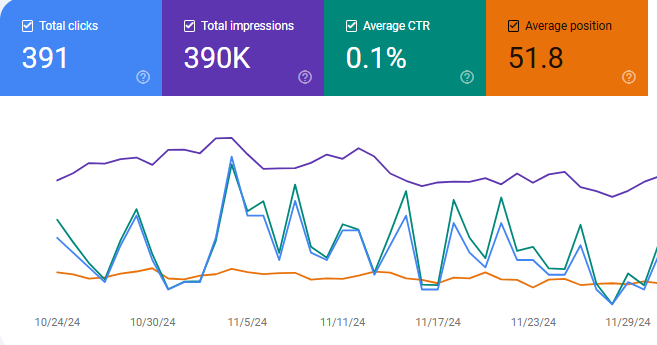
What is shown:
- Total clicks, impressions, average click-through rate (CTR), and average position
- Data on query. Pages, countries, devices, and search appearance.
How to use it:
- Identify high-performing pages and queries.
- Discover low-CTR keywords that can benefit from optimization.
- Monitor the impact of your SEO efforts.
- URL Inspections

What it does:
- Check the indexing status of a specific URL.
- Provide details about any issues preventing the URL from being indexed.
How to use it:
Click on the search bar, paste your website-specific URL, and tap Enter. The result will be shown in a few seconds.
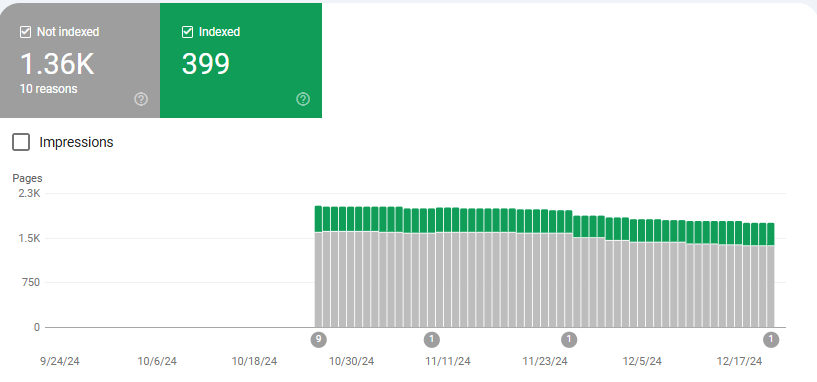
- Index Coverage report
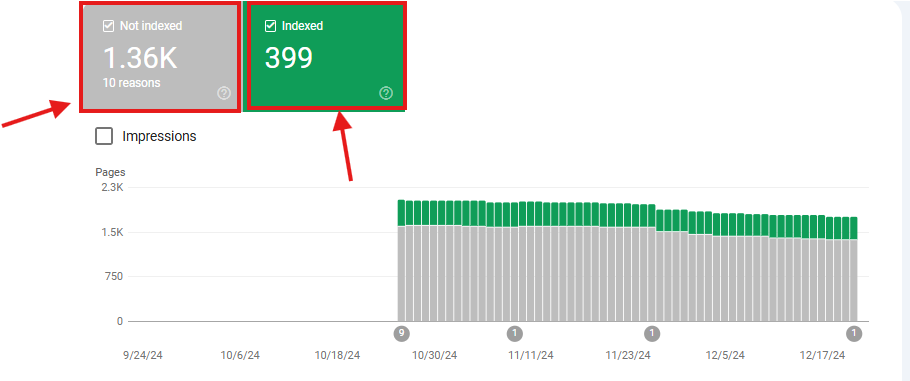
What is shown:
- It shows us the information on pages that are indexed and those with errors.
How to use it
- You can fix errors such as 404 Not Found” or “Server Error”.
- Resubmit pages once the issues are resolved.
- Sitemap
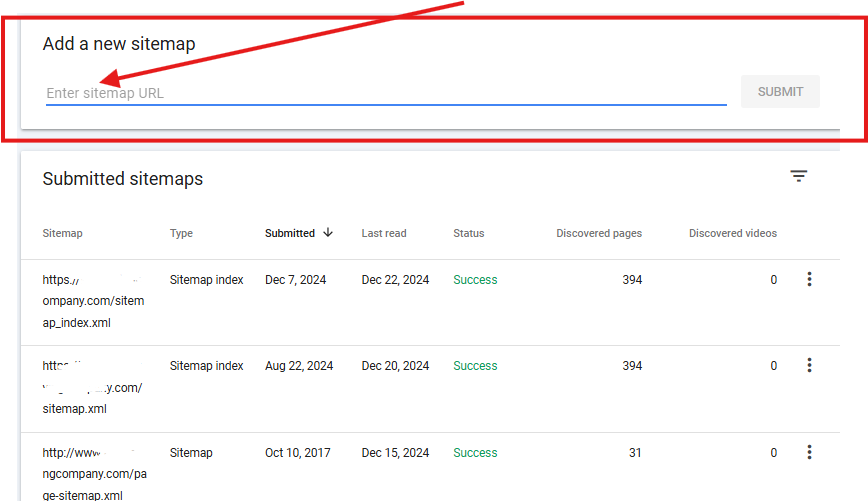
What it does:
- Allows you to submit your XML sitemap to Google
How to use it
- Submit your sitemap to help Google understand your site’s structure and prioritize crawling.
5. Core Web Vitals
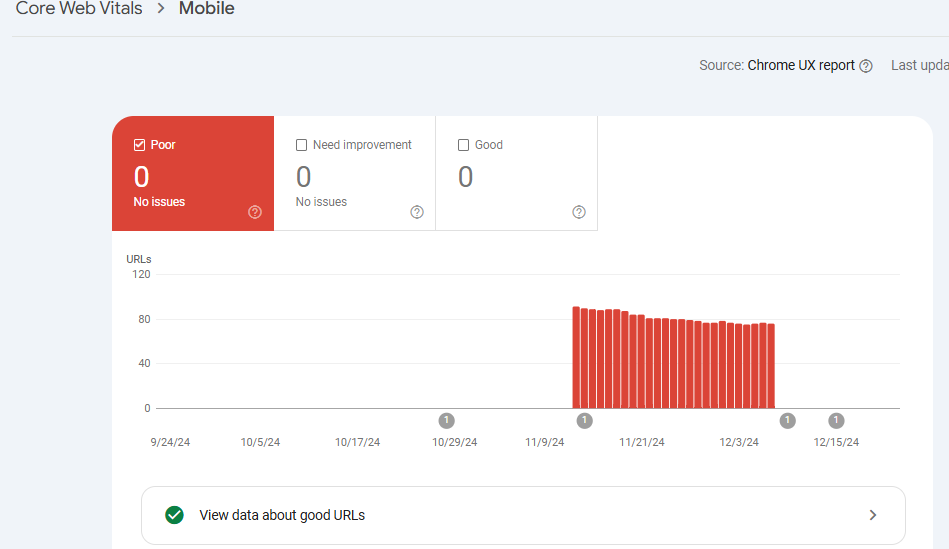
What it shows:
Performance metrics related to page load speed, interactivity, and visual stability.
How to use it
Focusing on improving metrics like largest contentful paint (LCP), first input delay (FID), and cumulative layout shift (CLS)
6. Mobile Usability
What it does:
- Its show highlights the issues affecting your site’s mobile user experience.
How to use it:
- You have to check the issues such as the small size of text, clickable elements being too close together, or viewport configuration issues.
7. Security issues
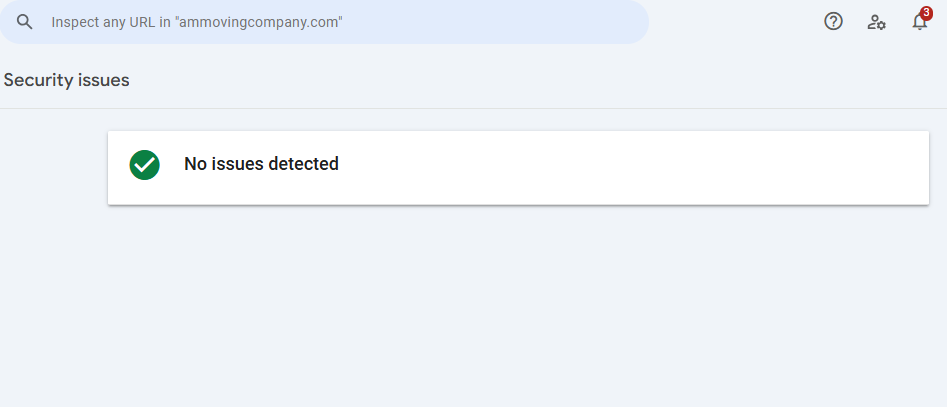
What it does
- Alerts you about potential security threats, such as malware or hacked content.
How to use it
- Act promptly to fix any identified issues and request a review once resolved.
Advanced Tips for Maximizing Google Search Console
1. Analyze Query Intent
Use the performance report to identify whether the intent behind the use queue is informational, navigational, or transactional. Optimized content accordingly to align with user needs.
2. Track Your Backlinks
You can use the links. Report to see which websites are linking to yours. Focus on building high-quality backlinks to improve domain authority and rankings.
3. Leverage Search Appearance Data
Regularly review your content that appears in search results, including rich results, AMP pages, and more. Optimized structured data to enhance visibility.
4. Monitor Seasonal Trends
Compare performance data over different periods to identify seasonal trends. This insight can help you plan campaigns and content updates.
5. Use GSC with Google Analytics
Link to Google Search Console with Google Analytics to get a more comprehensive view of your website’s performance and use behavior.
Common Issues and How to Fix Them
- Pages Not Indexed
Solutions:
- Use the URL Inspection tool to check why a page isn’t indexed. Common issues include no index tags, server errors, or crawl budget limitations.
2. Low Core Web Vitals Scores
Solutions:
- Optimize images, reduce server response times, and implement lazy loading for better performance.
3. Mobile Usability Errors
Solutions:
- User responsive design, increase font sizes, and ensure buttons are easily clickable.
Conclusion
Google Search Console is a treasure trove of insight that can drive your website’s success. By understanding its features and leveraging its report, you can diagnose problems, optimize performance, and improve your site’s visibility in search results. Regularly, monitor your GSC dashboard to stay ahead of potential issues and maintain a competitive edge in the digital landscape.
Whether you are aiming for a better ranking, higher traffic, or a more user-friendly website, Google Search Console is your go-to tool for achieving those goals. Start using ti today, and watch your website thrive.